To clean up your bookmarks in 30 minutes, back them up first, delete in bulk, clear out duplicates, and keep a few small folders. This works in Chrome, Edge, Firefox, and Safari.
Open your bookmark manager
Open your bookmark manager on a computer before you start:
- Chrome: Ctrl+Shift+O on Windows, Cmd+Option+B on a Mac
- Edge: Ctrl+Shift+O
- Firefox: Ctrl+Shift+O on Windows, Cmd+Shift+O on a Mac
- Safari: Option+Cmd+B
1. Back up your bookmarks (3 minutes)
Export your bookmarks to a file before deleting anything. Our guide to exporting bookmarks from any browser shows how.
Don’t rely on sync as your safety net. Sync copies deletions to your other devices too, while a file stays unchanged so you can always go back to it.
2. Delete in bulk (10 minutes)
Don’t open the links. Judge each one by its title and delete fast. Good items to cut:
- whole folders from old jobs, trips, courses, and finished projects
- bookmarks you do not recognize
- home pages you could type from memory
- news, offers, and events that only mattered at the time
If you wouldn’t search for it again once it’s gone, delete it.
- Click the first bookmark.
- Hold Shift and click the last to select a range, or hold Ctrl (Cmd on a Mac) to pick separate ones.
- Press Delete.
3. Remove duplicates (4 minutes)
Duplicates mostly come from imports and saving the same page twice.
- Edge has a built-in tool. Open the Favorites page (edge://favorites), click More options (the three dots), then Remove duplicate favorites. It only removes duplicates in the same folder.
- Chrome, Firefox, and Safari lack this tool. Sort a folder by name so repeats sit together, then delete the extras.
Watch for links saved with and without text after a question mark in the address. Those are the same page.
4. Spot-check old links (4 minutes)
Pages vanish over time. Pew Research Center checked a sample of pages from 2013 and found that 38% were no longer accessible by October 2023. Your oldest folders hold the most dead links.
You don’t need to test every bookmark. A dead link costs nothing until you click it.
- Open the few bookmarks you would be upset to lose.
- If one is dead, paste its address into the Wayback Machine at web.archive.org for a saved copy.
- For anything truly important, save a copy of the page, such as a PDF, instead of relying on the link.
5. Keep a few folders (5 minutes)
Organize what remains and keep it small:
- Bookmarks bar: only the sites you open every day, about 7 to 10.
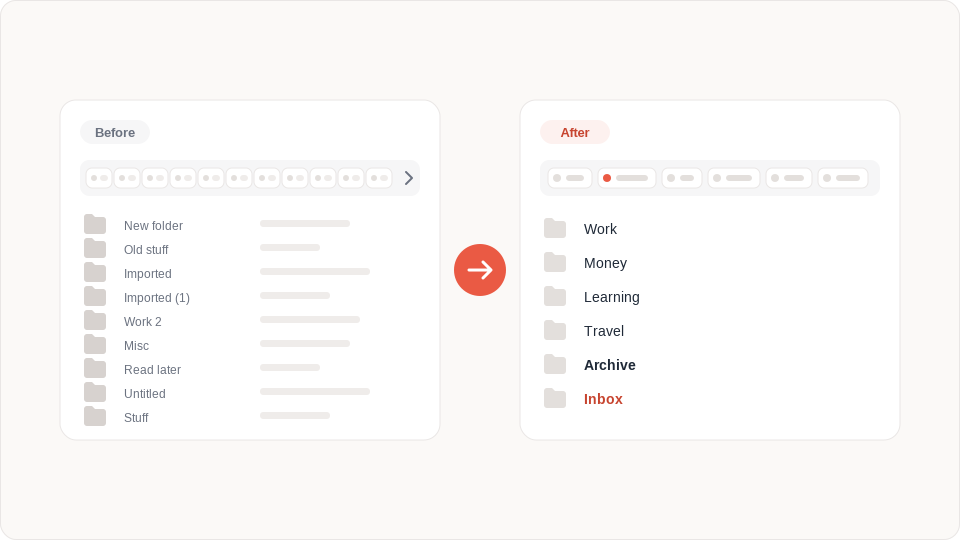
- 5 to 8 folders, one level deep. Name them for what you’re doing, like Work, Money, Learning, or Travel, rather than the type of site.
- One Archive folder for everything else. You will find those by searching, so don’t sort them.
Merge overlapping folders and delete empty ones.
6. Rename the keepers (5 minutes)
A bookmark keeps the title the page gave it, like “Home | Acme”. Search looks at that title, so rename key bookmarks to the words you’d type when looking for them, like “Acme invoices”.
- Start with your bookmarks bar and main folders.
- Right-click a bookmark and choose Edit or Rename.
7. Add an Inbox folder (1 minute)
- Make a folder called Inbox.
- Save new bookmarks there from now on.
- Once a week, move them to a real folder or delete them so the pile stays gone.
Finish with a tidy setup
You will end up with a short bookmarks bar, a few folders, an Archive, and an Inbox. If your bookmarks pile up again anyway, that’s the problem we’re working on with Clipstead, a small app for saving links and finding them again. Here’s what it is.